
version 2.0.31
a Windows utility
|
CopyFolders 2 version 2.0.31 |
a Windows utility |
|
CopyFolders is an easy to use freeware program (no popups, no ads) that allows you to copy new or modified files from up to 9 origin folders to the same number of destination folders. Simply select one or more origin folders and the correspondent destination folders and then press the "List" button to get the files list. If the list is ok then press the "Copy" button to copy them to the destination folder, if new or modified.
Files listing and files copy can be stopped in any moment by pressing the 'Esc' keyboard key, the "List" button when led light is off or deselecting the relevants check boxes.
|
|
CopyFolders 2 is a bit different from the previous version:
|
Note about the following item n. 1: The main goal of CF2 is to make copies of your own files. For this purpose it doesn't need to copy hidden or system files. However, in some cases (e.g. to duplicate a bootable USB stick) it may be necessary to duplicate these files as well: in this case, simply select the relevant checkboxes.
Note that system files are always hidden: this means that you can't check the relevant checkbox (it's disabled) without first selecting the copy of hidden files. Also note that the OS protected system files
remain uncopyable (higher permissions are needed).
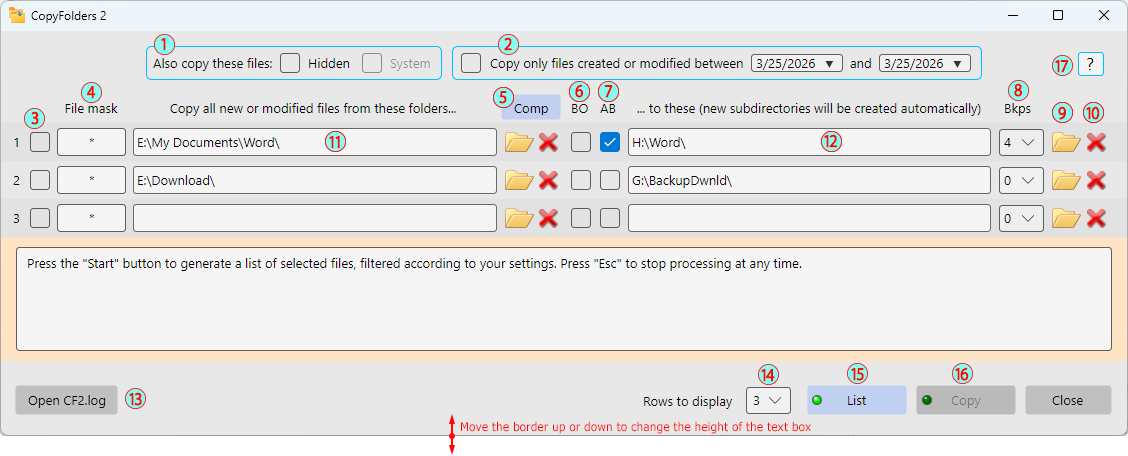
| 1 | Enable if you need to copy also hidden or system files (e.g. to duplicate a bootable USB stick) |
| 2 | Selecting this option you can copy only files created or modified in a range of dates |
| 3 | Select the checkboxes of the rows you want to list or copy (are considered only the selected rows) |
| 4 | Wildcards box, where you can filter the files to copy |
| 5 | Rows compact button, to quickly erase empty rows and to compact full ones |
| 6 | "BO: Basename Only" checkboxes: check to copy only files stored in the last folder (basename) of the starting path (excude all subfolders) |
| 7 | "AB: Automatic Basename" images: click to auto-insert in the destination path the starting path basename folder (no need to manually create it) |
| 8 | Selector of number of previous versions of origin file to save, e.g. for important .docx or .xlx files . Zero = no backup of previous versions |
| 9 | Click to open the folder browser to select the destination path (same for the starting one) |
| 10 | Click to erase the destination path (same to erase the starting one) |
| 11 | Origin folder path. You can't write here: you must chose the path opening the "Browse the folder" window, by click in the related folder image. You can then click at any time into the path text area to quickly open the selected folder. The path must exist: otherwise (e.g. if you delete a folder by mistake) will be displayed an error message |
| 12 | Destination folder path. Same notes as the starting one. If the destination path does not exist (e.g. if it is deleted by mistake) it will still be automatically recreated |
| 13 | "Open CF2.log" button. Press the button to open the .log fine containing the enlisted files (List button pressed) or copied files (Copy button pressed) |
| 14 | Selector of the start/destination path rows to display (max value: 9 rows). In the case of the above figure has been selected 3 rows out of 9 |
| 15 | "List" button. Click to create a .log file with the list of all new or modified files, according with your settings. Press the "Open CF2.log" button to show the list. Pressing again the button when it is not active (led light off) you can abort the work in progress and return to the listing (led light on). If you want to check ALL files that match your settings, simply select momentarily a virgin folder as destination one (a folder where has never made backups) and then abort the copy |
| 16 | "Copy" button. If the list is ok for you press this button to backup files new or modified from starting folder to the destination one |
| 17 | Click to open the program menu |
|
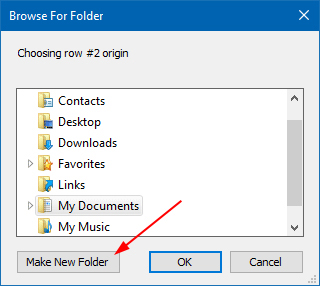
Note: you can create the destination folder if you want a different name respect to the starting basename folder, or click a 'AB' image to automatically insert to your selected folder an additional one with the starting basename name (basename folder = the last folder of your starting path, if exixts).
If you prefer a different name for the final backup folder you can easily create a new folder by the folder browser that you can open clicking the related folder icon. Obviously you can also create it with the File Explorer of Windows. Note: depending from your OS the folder browser can be different from that in picture, the "Made a new folder" button can be positioned at the top of the window and also the window itself can be in the OS language, whatever lang is set in CF2. |
Backup of previous versions of a file
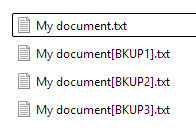
You can save up to 6 previous version of a single file, simply selecting the desired number by the combobox (6). Previous files versions will be saved as in the below figure:
Very long paths
Sometimes can happen that the selected path is so much long that exceeds the related label. In this case a part of the path is not visible. To see the whole path move mouse pointer over the label and wait a bit to display its tooltip window.